

01
Smart routing
Send traffic by domain, IP, and rule sets, so different apps can take different paths.
Explore features →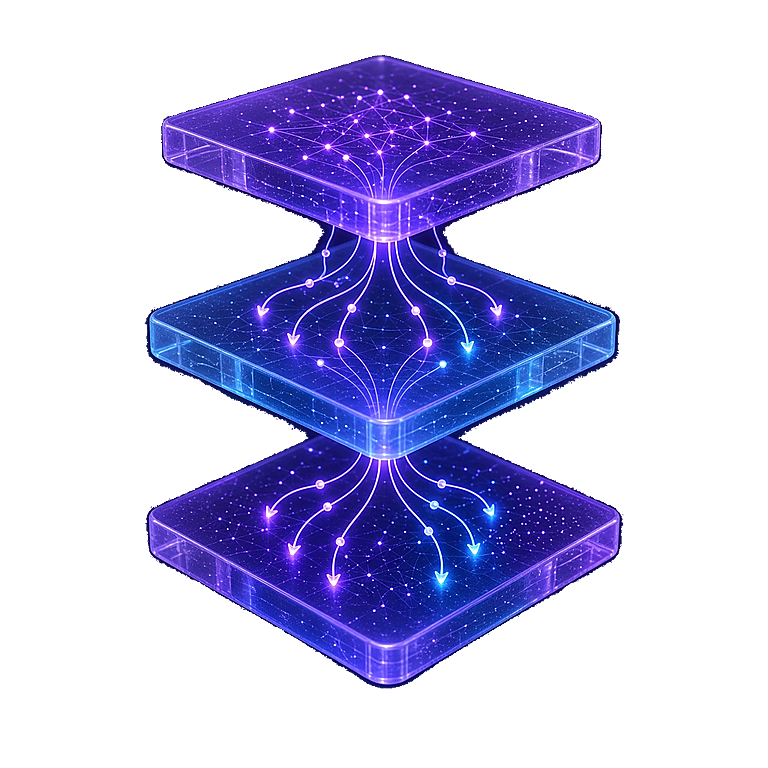
Cross-platform clients · downloads and setup
Compare clients, download the build that matches your system, and follow setup that stays practical. Windows, macOS, Android, and Linux — with install notes and config guides in one place.

Six things these clients actually do
From rule-based routing to live connection logs, here's what you'll actually use — and how it keeps day-to-day setup simpler.
01
Send traffic by domain, IP, and rule sets, so different apps can take different paths.
Explore features →02
Import a subscription link or a local config, keep a few profiles in one place, and switch when a node list updates.
View the guide →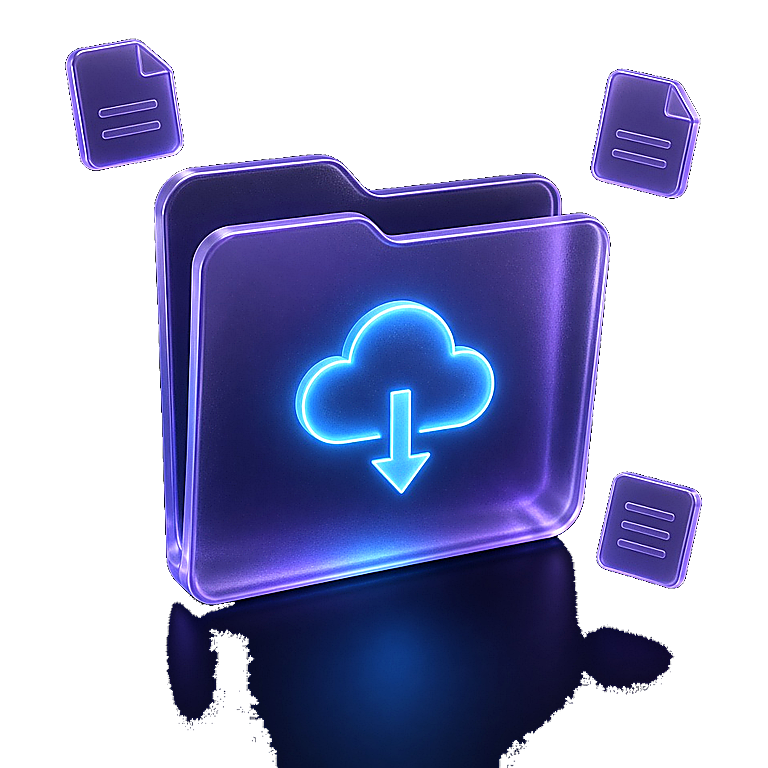
03
Ping nodes and see which ones respond, so you can pick something that fits the network you're on.
Learn more →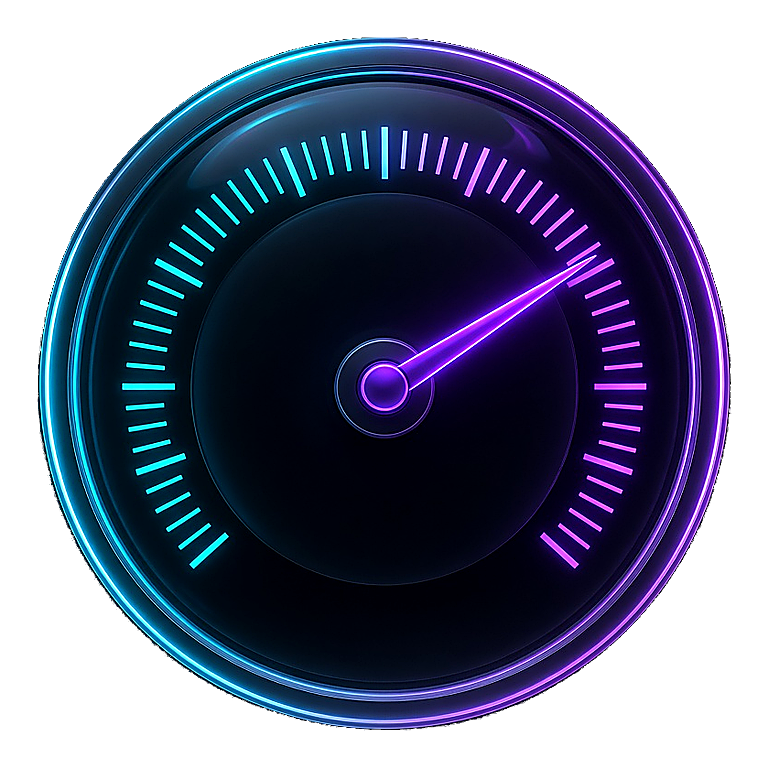
04
Watch connections, traffic, and logs so a request isn't a black box.
Explore features →
05
Run as a system proxy or a TUN device, depending on whether you care about the browser, desktop apps, or everything.
TUN guide →
06
Proxy groups, rules, and profiles in one place, so a complicated setup stays readable.
Learn more →
Get started
Download, import a config, then check that traffic is going where you expect.
Match the build to Windows, macOS, Android, or Linux, and confirm the file comes from the project's release page.
After install, add a subscription or config you obtained legitimately and that the client supports. Check that proxy groups and rules loaded.
Choose a node and a mode, watch the connection status, and confirm the sites you care about actually load.
Compare clients
There isn't one official Clash app. Pick by maintenance status, platforms, and the workflow you want.
| Client | Status | Systems | What it's good at | |
|---|---|---|---|---|
| Clash Verge Rev | Actively maintained | Windows / macOS / Linux | Mihomo core, TUN, subscriptions, and rules | Details |
| FlClash | Actively maintained | Windows / macOS / Linux / Android | One app across desktop and Android | Details |
| Clash for Windows | No longer maintained | Windows | The classic CFW interface — useful for history and migration, not a fresh install | Details |
Guides and answers
Sort out the ecosystem so a third-party site doesn't get mistaken for one official product.
InstallThe desktop client we point most people to, with platform notes and the release page.
ConfigAdd a subscription, check proxy groups, and fix the “no nodes after install” surprise.
MoveSwitch from CFW to a client that's still being updated.
Find a build for your device, then follow the install and config notes so connection management stays clear.